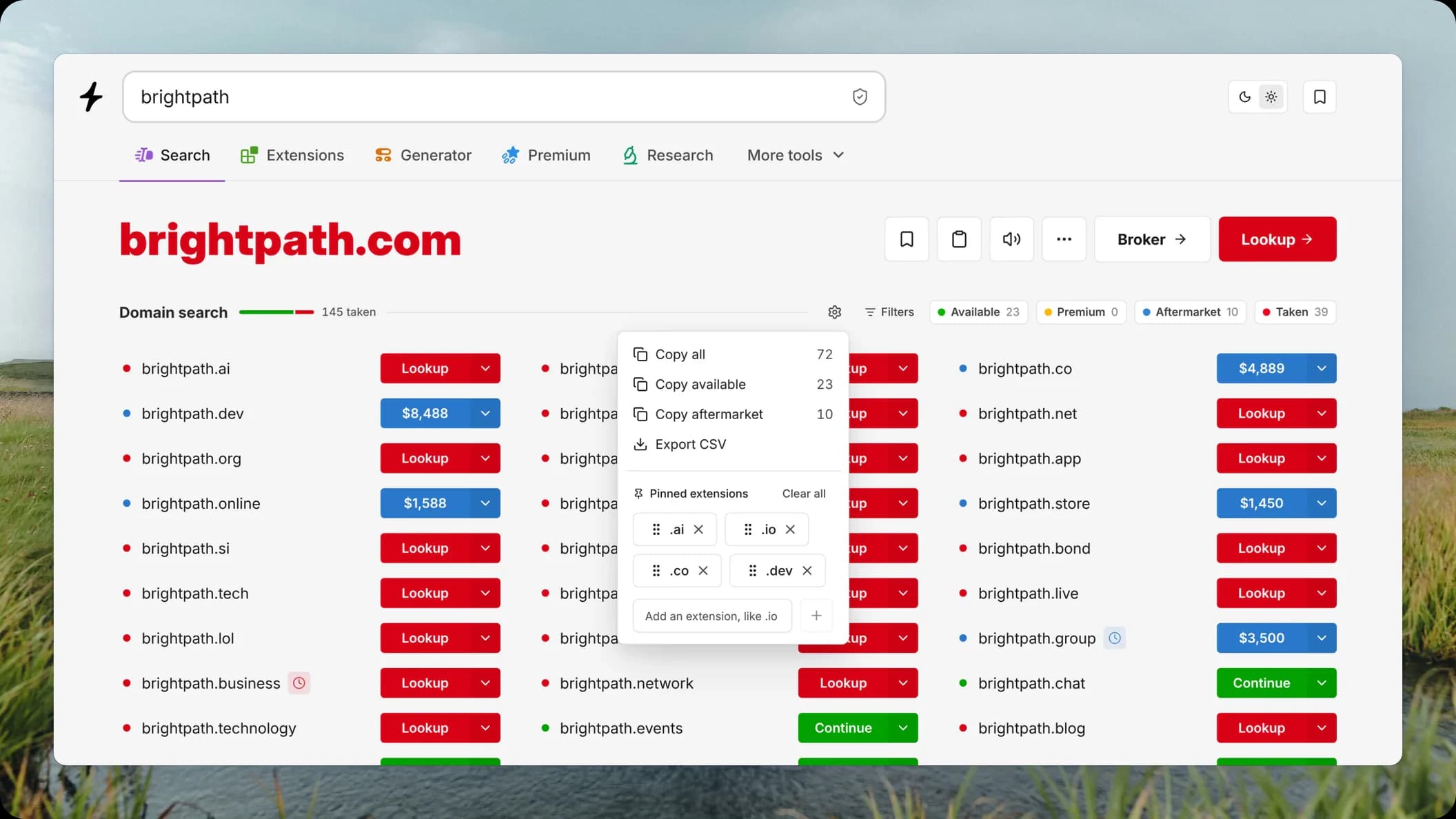
Searching a name usually means checking the same few extensions every time, then copying the good ones somewhere else. Search results now let you pin the extensions you care about to the top, and a new Results tools menu copies or exports the results.
Pin extensions to the top
Open a result’s More options menu and select Pin .io to top. Pinned extensions lead the results in the order you pinned them, ahead of the suggestions and .com. Select Unpin .io to drop one.
You can pin up to 12 extensions. The Extensions page leads each section with its pinned extensions, and the available extensions on Research follow your pin order too.
The Results tools menu
The gear in the results header opens Results tools:
- Copy all, Copy available and Copy aftermarket copy a comma-separated list of names, with a count next to each.
- Export CSV downloads the results with the same columns as the saved domains export.
- Pinned extensions lists your pins. Drag a pin to reorder it or move it with the arrow keys, remove one with its X, or select Clear all. Type an extension like .io in the field below to pin it.
The generator gets copy and export too.
Try it
Search a name, open More options on a result and pin it. Pins are saved in your browser, and with cloud save on, a signed-in account keeps them across devices.
Built by Antonio Stoilkov, Jordan Clarke and Matt Maiale.
Frequently asked questions
How many extensions can I pin?
Up to 12. Once you reach 12, the field in Results tools turns off until you unpin one.
What does Copy all include?
Every name the results show, including ones a filter dims. Copy available and Copy aftermarket count the whole list, like their filter pills.
Do my pins sync?
Pins are saved in your browser. With cloud save on, your account keeps them, so they follow you when you sign in on another device.